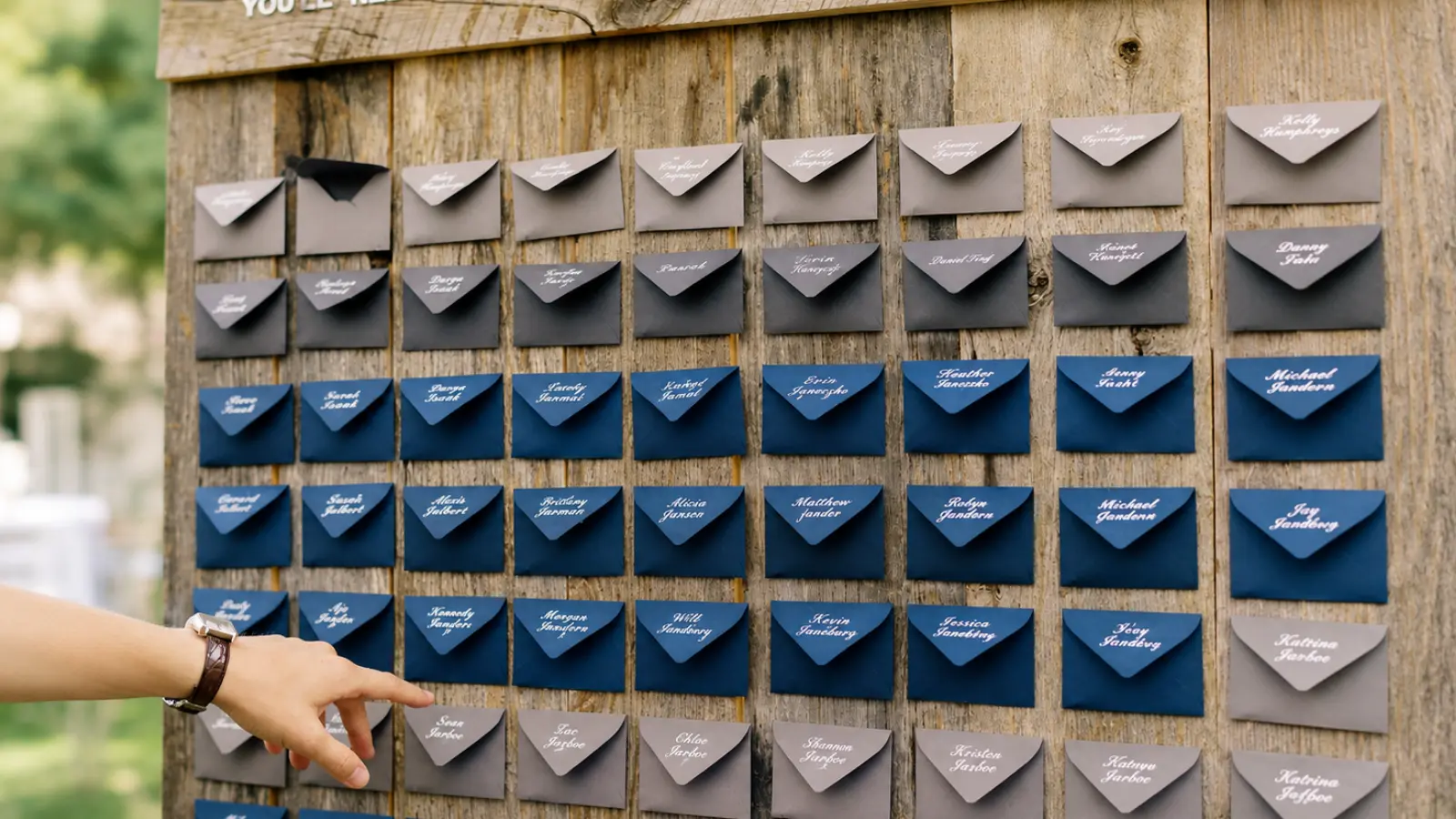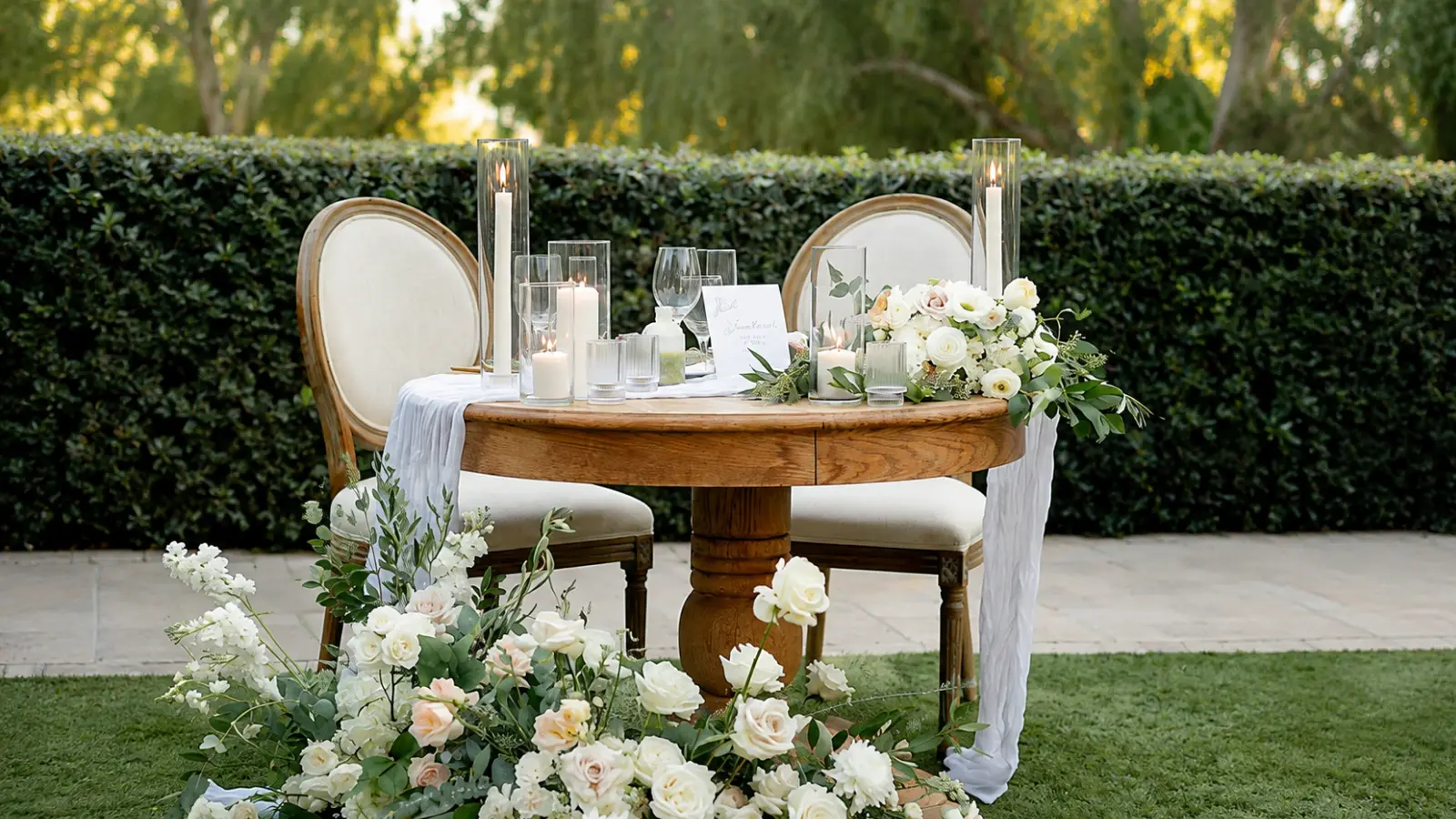
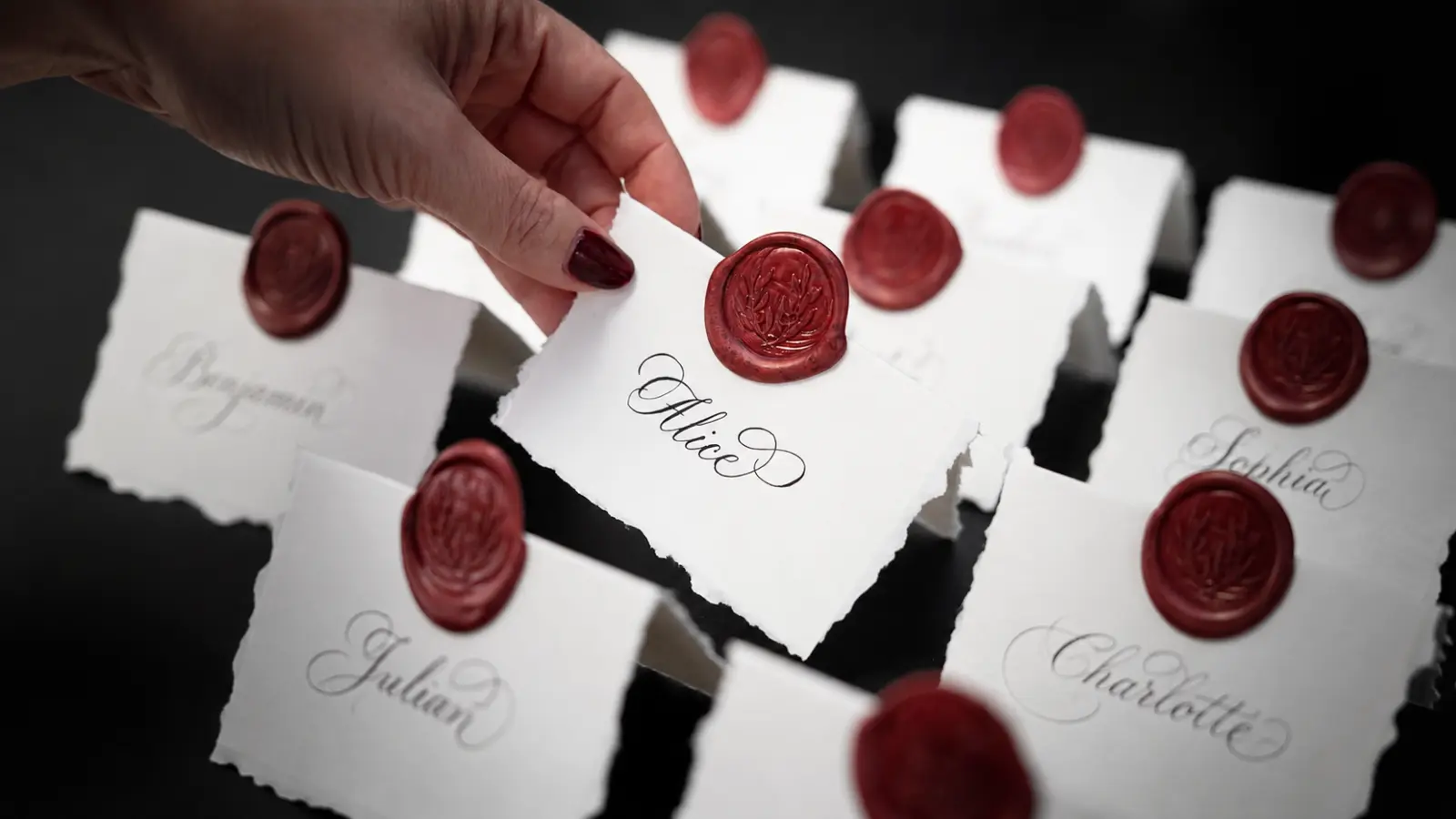
A Wedding Seating Chart Template should help you turn confirmed guest data into a usable room plan without forcing you to maintain several competing versions. The same seating assignments should be able to move between a spreadsheet, visual floor plan, printable working copy, and digital editing view without changing underneath.
Different formats solve different jobs. Excel or Google Sheets is useful for the master guest-to-table data, a visual floor plan shows how the room works physically, a printable version supports meetings and final review, and a digital seating chart makes last-minute changes easier to test.
This Wedding Seating Chart Template guide explains how to structure those formats around one master source, which fields matter, when each version is most useful, how to control changes, and how to prepare clean downloads and handoffs without rebuilding the seating plan every time.
Choose the Template Format by Planning Job
Different seating formats solve different problems, so choose them by task rather than by aesthetics.
A table list is fastest for checking who is assigned where. A visual floor plan shows whether the room itself works. Excel or Google Sheets is strongest for sorting, filtering, and maintaining the master data. A printable version is useful for meetings and final review. A digital tool is strongest when guests are still moving between tables.
You do not need to choose only one, and the breakdown below makes it easier to see where each format earns its place.
Seating Chart Template Types Compared
The table below compares the main formats by what they are best for and how easily they support editing, visual planning, and printing.
| Template Type | Best For | Editable | Visual | |
|---|---|---|---|---|
| Table List | Fast assignment review | Yes | Low | Yes |
| Excel / Google Sheets | Master guest and table data | Yes | Low to moderate | Yes |
| Visual Floor Plan | Room layout and table placement | Usually | High | Usually |
| Printable Template | Meetings and final reference | Limited after printing | Moderate | Yes |
| Digital Seating Chart | Frequent guest moves and visual editing | Yes | High | Depends on tool |
The format can change during planning, but the underlying guest and table assignments should stay connected to one master record.
Start With a Table List
A table list is the simplest version of the seating template and often the best place to begin.
Use one section or row per table with Table Name or Number, Capacity, Assigned Guests, Group, and Special Need. This lets you identify over-capacity tables, missing guests, and incomplete groupings without the visual complexity of the full room.
A free wedding seating chart does not need elaborate graphics to be useful. If the table list answers who is sitting where and whether capacity works, it is already doing meaningful planning work.
The visual floor plan comes next when room position matters.
Add a Visual Floor Plan
A visual template should show where each table sits in relation to the couple, dance floor, exits, bars, service areas, and other fixed venue features.
Use the venue’s actual floor plan as the base whenever possible rather than drawing a generic room from memory. Label tables consistently with the master spreadsheet so Table 6 means the same thing in every version.
The visual view is especially useful for checking circulation, spacing, VIP placement, accessibility, and guest conflicts.
It should visualize the plan, not become a second place where assignments are independently maintained.
Use Excel or Google Sheets for the Master Data
A wedding seating chart template Excel file or Google Sheets version is ideal for maintaining the authoritative guest-to-table assignments.
Useful columns include Guest Name, Household, RSVP Status, Party Size, Table, Group, Special Need, and Notes. Filters can show guests without tables, tables over capacity, households split across tables, or specific guest groups.
A free seating plan template in Google Sheets can also make collaboration easier when more than one person is reviewing the room. Excel can be equally effective when you prefer local file control or offline work.
The platform matters less than having one clearly identified master version.
Create a Printable Working Version
A printable seating template is useful when reviewing the room with a venue, planner, caterer, or family member without relying on a screen.
Print the table list, the visual floor plan, or both. Add the version date prominently so nobody mistakes an older copy for the current arrangement.
If you print seating chart pages before the plan is final, treat them as working copies and return any approved changes to the digital master afterward.
Paper is a review layer; the master assignments should still live in the editable file.
Use a Digital Seating Chart for Fast Changes
A digital seating chart becomes especially useful when the guest list is stable enough to seat but still changing enough that drag-and-drop movement saves time.
Digital tools can make it easier to move whole households, test table capacities, and visualize the effect of shifting one guest group across the room.
What matters most is not the interface but whether the tool lets you preserve or export the final assignments cleanly.
A visual editor is most valuable when it reduces duplicate data entry rather than creating another disconnected version of the plan.
Fields Every Seating Template Should Include
The template should include enough information to make a seating decision understandable later.
Core fields include:
- Guest Name: one record for every confirmed attendee.
- Household or Group: shows natural relationship connections.
- Table: the current assignment.
- Capacity: the confirmed limit for that table.
- Special Need: accessibility, conflict, proximity, or another placement constraint.
- Status: useful while assignments are Draft, Review, or Final.
Extra fields are useful only when they change how the seating plan is built or handed off.
Control Versions Before Changes Multiply
Version control matters because seating plans often change quickly near the wedding.
Name one file as the master and date major exported versions. Avoid labels such as “FINAL,” “FINAL2,” and “FINAL-REAL” with no clear chronology.
A simple naming system can use the wedding date or export date plus a version number. Printed copies should show the same version identifier as the digital export they came from.
If someone suggests a change on paper or by message, update the master first and regenerate the output rather than editing only the copy they happen to be holding.
Prepare the Template for Download and Handoff
A useful download should preserve the same core structure across formats.
The free seating arrangement template should ideally include a Table List tab, a Guest Assignments tab, and a simple visual planning layer or printable reference when available. Avoid separate files for every minor view if filters or exports can produce them from the master.
Download options:
- Excel / Google Sheets: editable master for assignments, filters, and version control.
- Printable PDF or print view: static reference for meetings and final handoff.
- Digital version: visual planning layer for moving tables or guests before final export.
The best download package gives the couple several ways to use the same seating data without asking them to rebuild the plan in each format.
Keep One Seating Plan Across Every Format
A Wedding Seating Chart Template works best when the format changes but the assignments do not. Keep one master guest-to-table record, then use spreadsheet, visual, printable, and digital versions as different views of that same seating plan.
Every approved change should return to the master before a new export or print is created. When table labels, guest assignments, capacities, and version dates stay synchronized, the couple, venue, planner, caterer, and other vendors can all work from the same room instead of several slightly different versions of it.
Frequently asked questions (FAQ)
How do you use a wedding seating chart template?
Start with a confirmed guest list and one master file containing each guest’s household or group, table assignment, special needs, and status. Use that master data to build or update the visual floor plan, then create printable or vendor-ready versions from the same assignments. Any approved change should go back into the master before a new version is exported.
What should a wedding seating chart template include?
At minimum, include guest name, household or group, table assignment, table capacity, special needs or placement constraints, and a status such as Draft, Review, or Final. A visual version should also reflect the actual venue floor plan, table positions, and important fixed features.
Is Excel or Google Sheets better for a wedding seating chart?
Both can work well. Google Sheets is convenient when several people need live access and collaboration, while Excel works well for local or offline management. The more important decision is choosing one file as the authoritative master so guest assignments do not diverge across platforms.
When should you print the wedding seating chart?
Print working copies whenever they help with venue, planner, caterer, or family review, but print the final operational version only after guest attendance, table assignments, and the venue floor plan are stable. Add a date or version number so older copies cannot be mistaken for the current plan.
How do you avoid multiple conflicting seating-chart versions?
Maintain one master editable file and create every spreadsheet export, printout, or visual copy from it. Date or number major versions, and whenever someone approves a change on paper, by email, or inside another tool, update the master first before generating the next output.
Does a wedding seating chart template decide where guests should sit?
No. The template organizes, tracks, and displays the assignments, but it does not determine the seating strategy. Decisions about relationships, families, singles, children, accessibility, conflicts, VIP placement, and table capacity should be made separately, then recorded in the template once the placement logic is settled.

About the Author
Débora Justo
Founder and editor of EVORÉ, creating practical wedding planning resources, thoughtful inspiration and useful tools for the decisions that shape a celebration.
Read more about the author →